
Hanwha SPS-A100M Beacon
Setup Hanwha SPS-A100M beacon for audio-visual talkdowns
Background
The Hanwha Vision SPS-A100M audio visual beacon can be integrated with Lumeo to provide visual strobes and dynamic audio talkdowns based on analytics triggers. This guide walks you through the beacon setup and how to integrate it with Lumeo.
Beacon Configuration
LED preset
From the beacon web interface, head to Event -> LED Preset and create a preset that you will subsequently trigger from Lumeo.
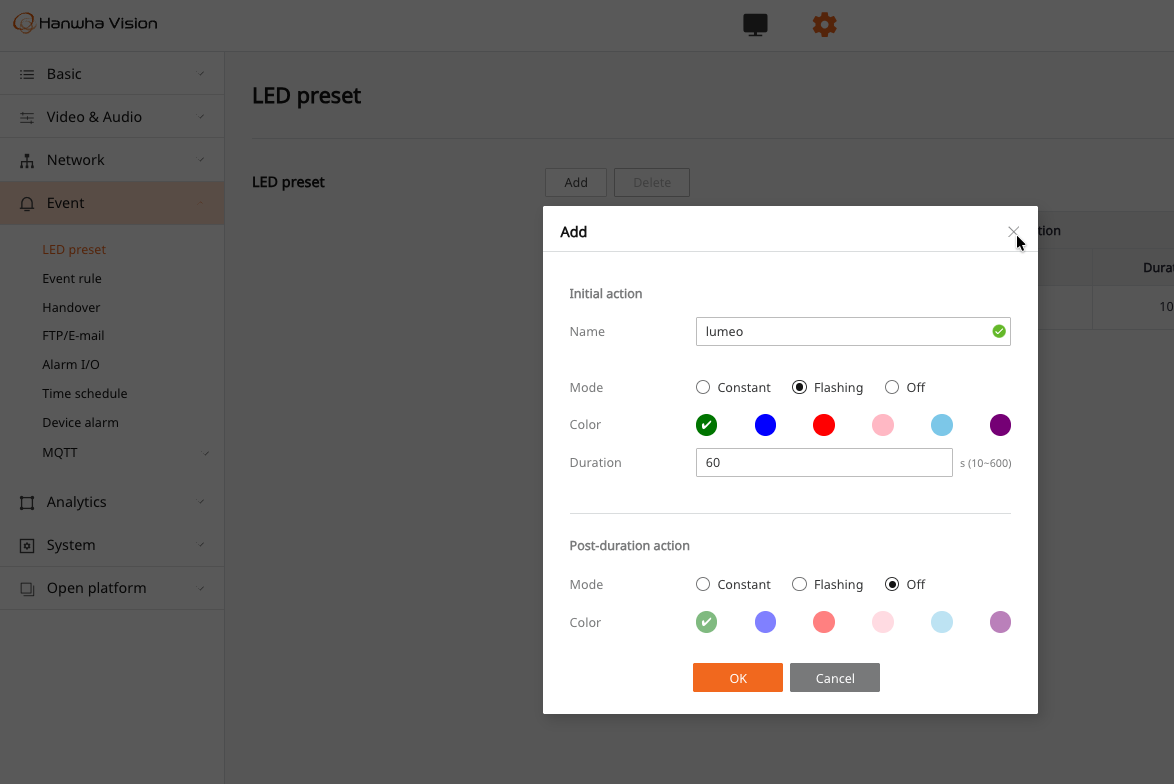
Create a new LED preset that triggers the LED the way you want. Remember to set the post-duration action to off to turn off the LED after the alert has been displayed.
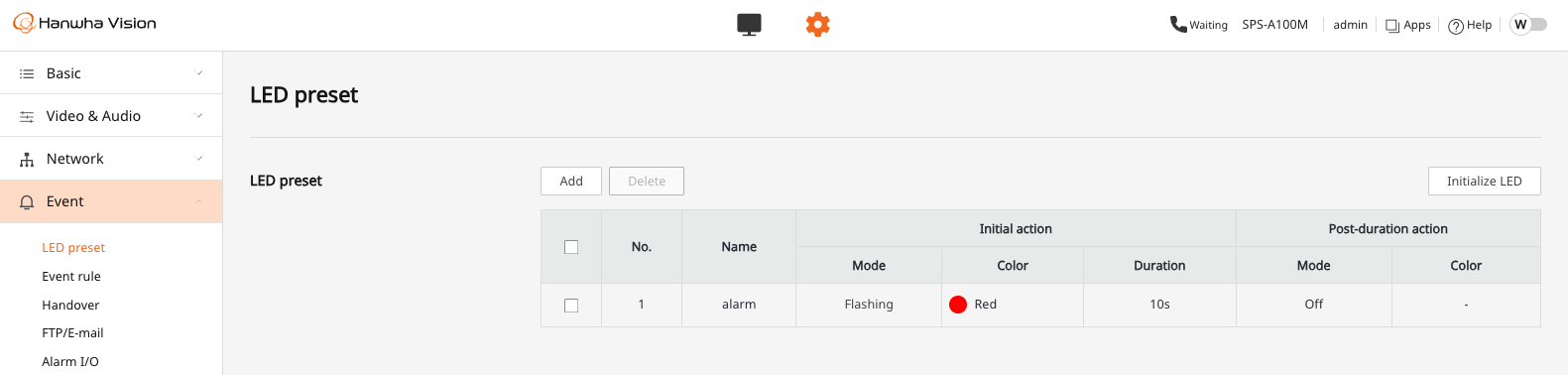
Note the LED preset number. You will need this to trigger the beacon LED subsequently.
Audio configuration
-
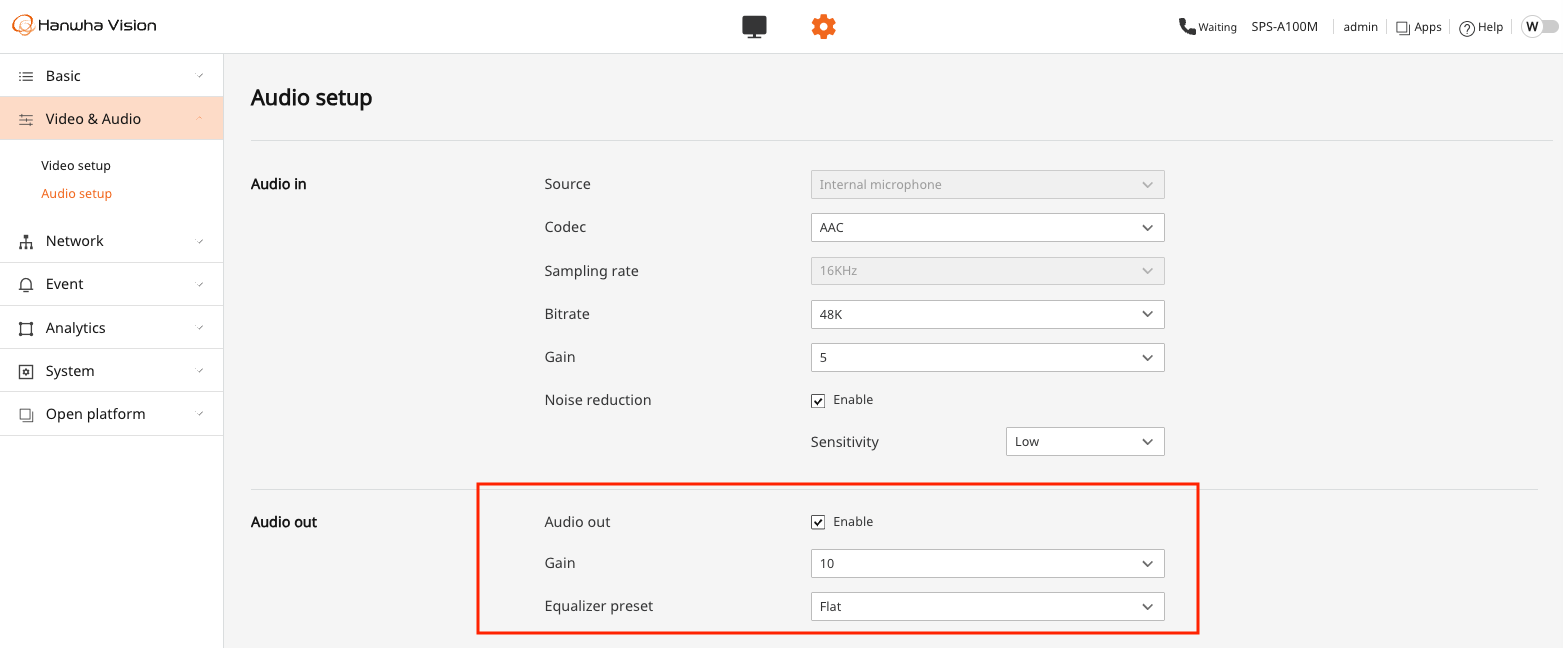
Video & Audio -> Audio Setup menu.
Test the audio volume. Ensure Audio out is enabled and that Gain is set to appropriate volume level.
- Enable SIP P2P under Network -> SIP -> Call Setup
SIP not available?If the SIP menu is not visible, upgrade the firmware on the beacon to
2.21.02minimum.
Check that "Enable SIP" and "Allow incoming SIP calls" are enabled. The default ports should be fine, but in case you change them, make a note of them.
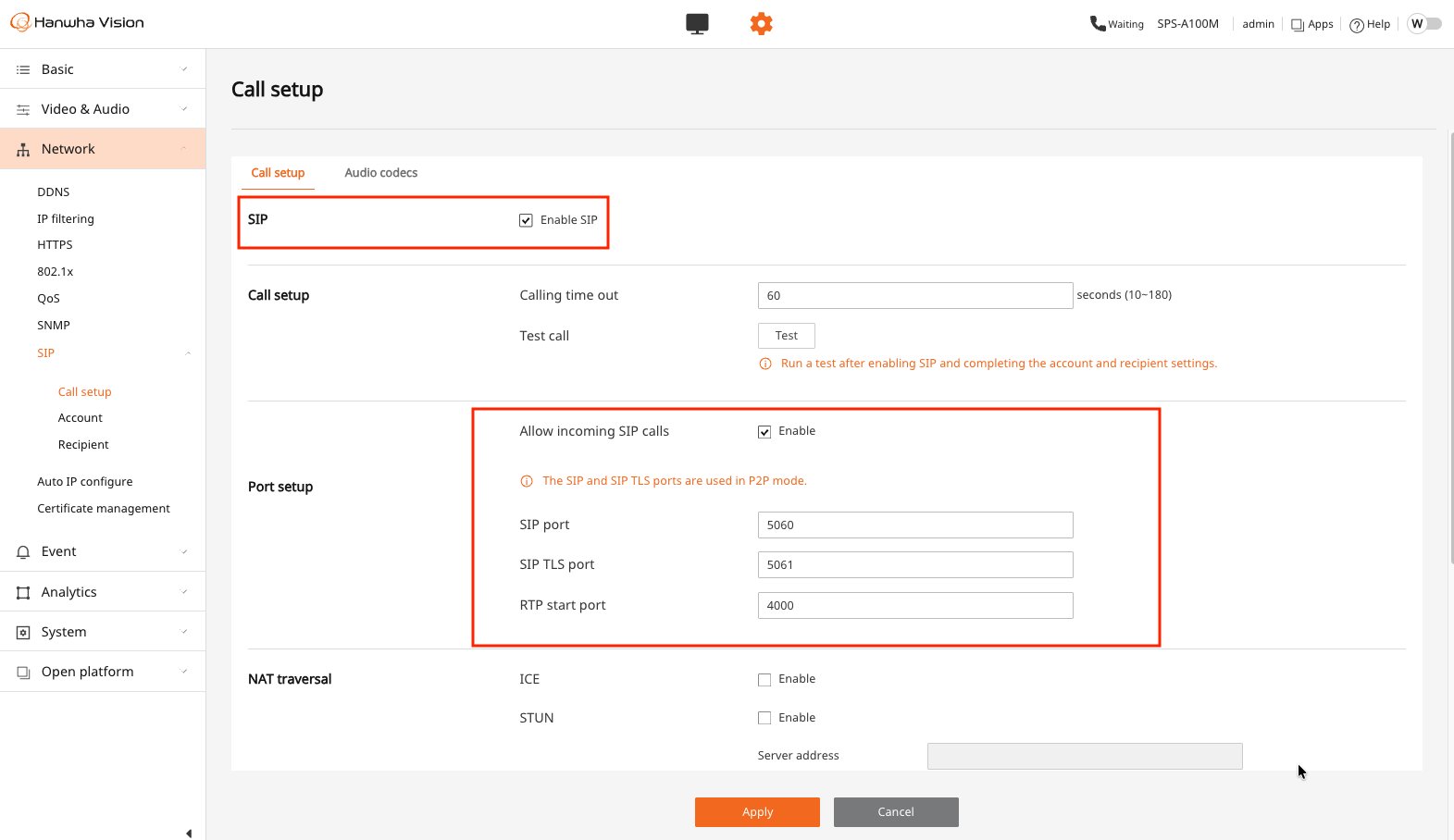
Enable SIP and Allow Incoming SIP calls
Optional : Set the call duration limit to 1 or 2 minutes to speed up recovery in case of network issues. This should typically be set a bit higher than the TTS speech duration you expect to play. Leave it to the defaults in case you expect to use the beacon with other TTS SIP solutions.
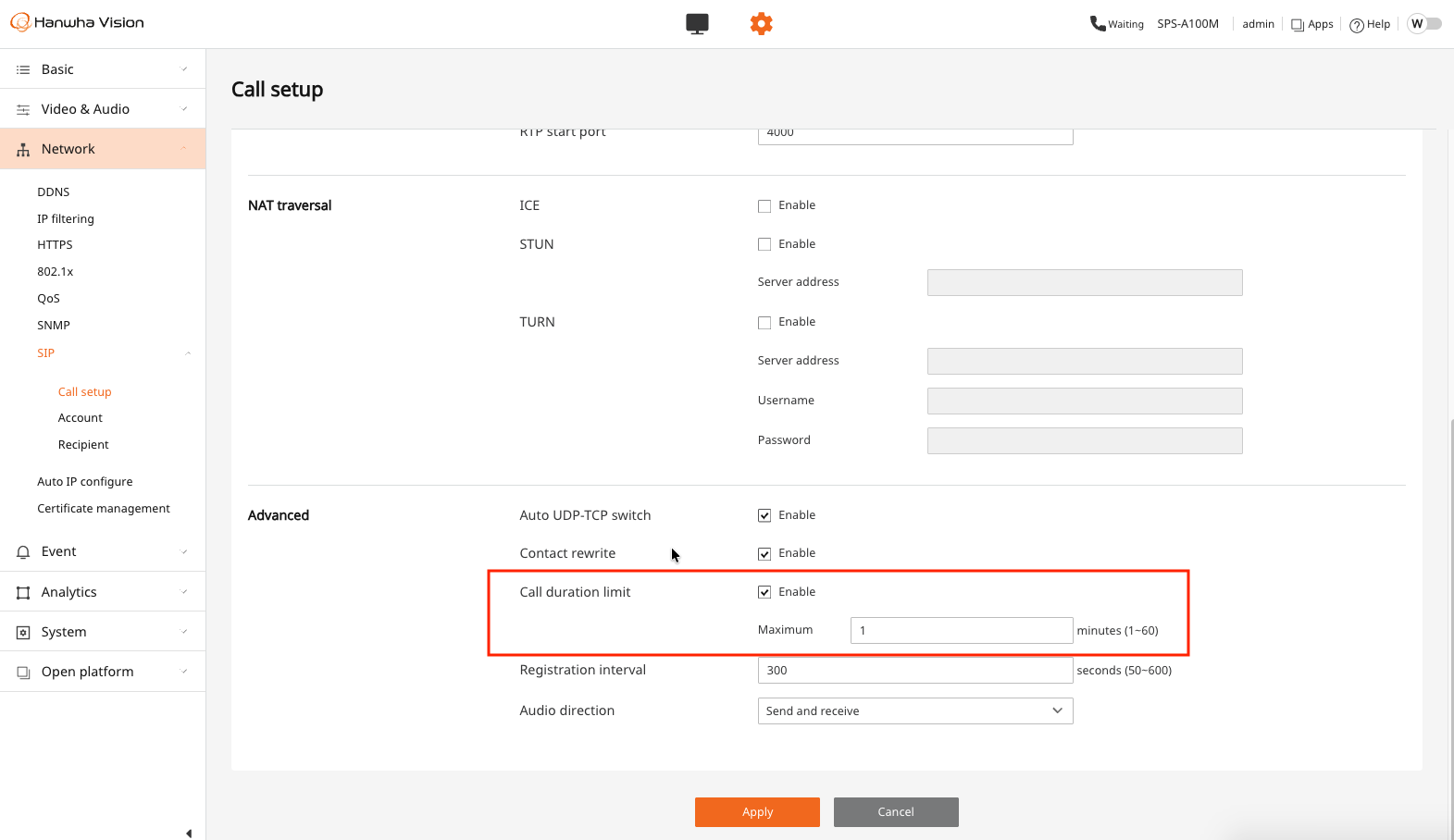
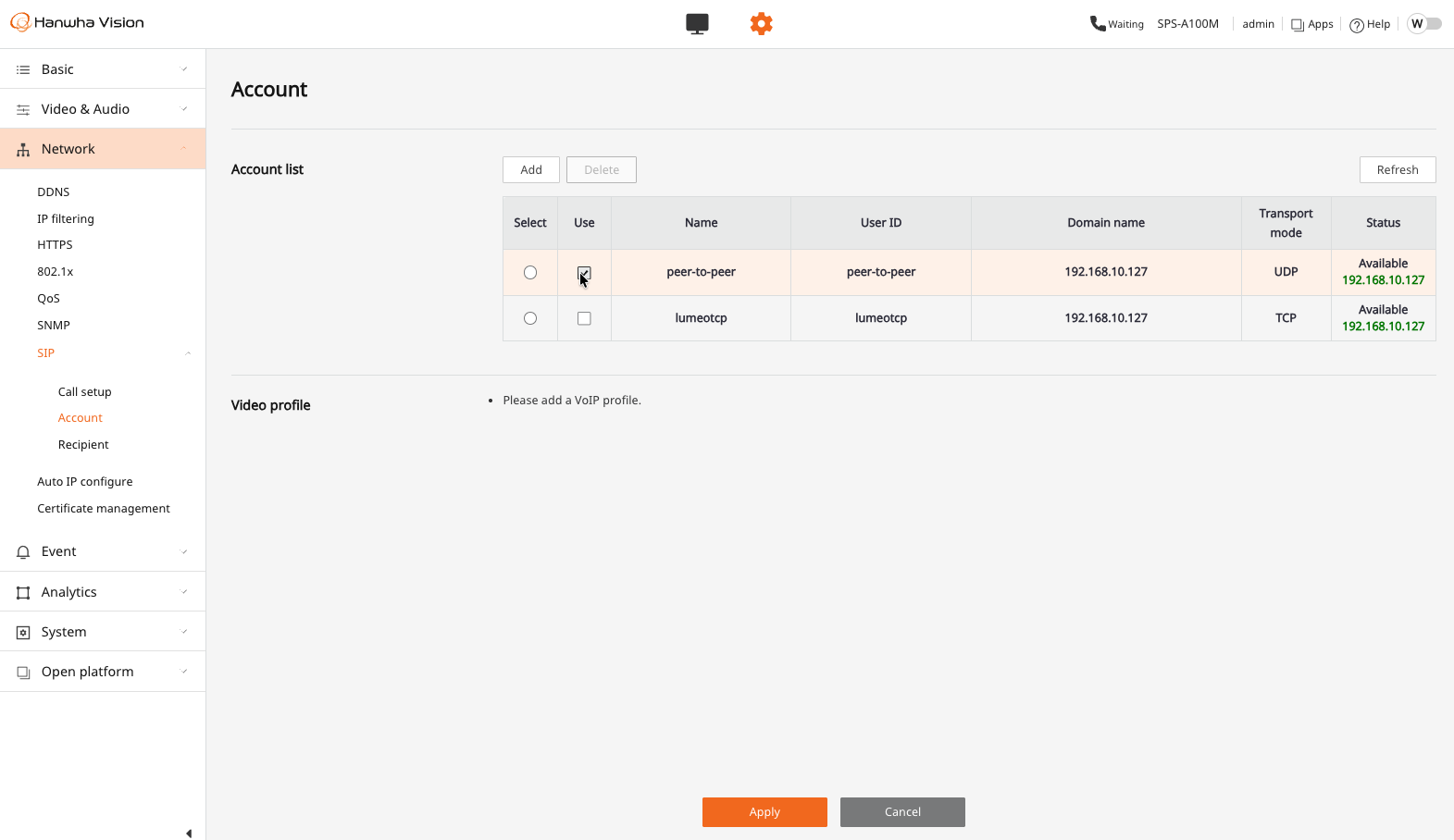
- Ensure that SIP account is enabled under Network -> SIP -> Account
Ensure that the default peer-to-peer account shows as available, and is set to "Use".
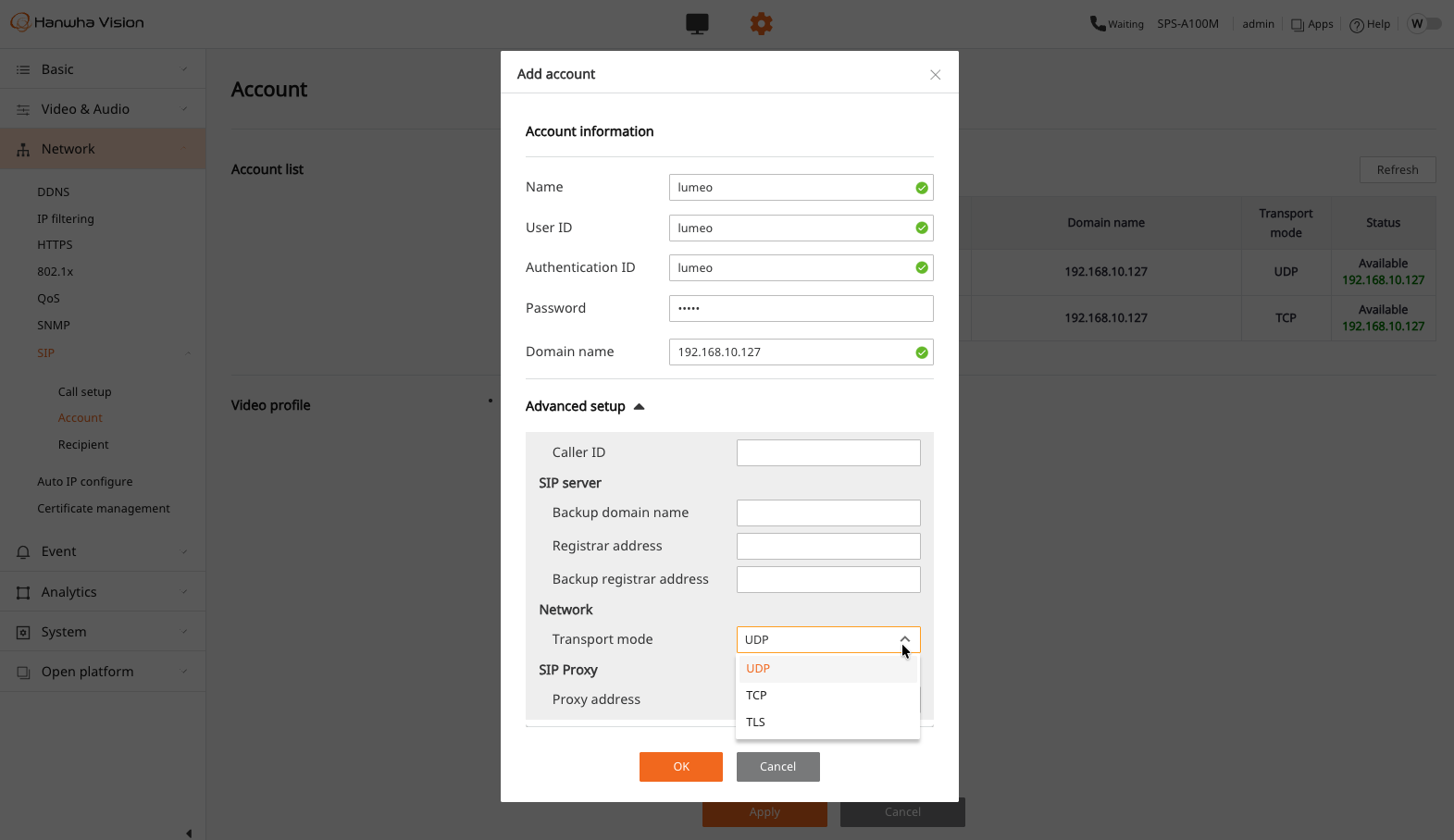
Alternatively, you can create a new SIP account if you wish to use non-defaults.
Lumeo integration
LED triggers
Trigger the LED using Send HTTP Webhook node in a workflow. Configure it as follows:
- Webhook URL:
http://<ipaddress>/stw-cgi/eventrules.cgi?msubmenu=ledpreset&action=control&LEDPresetIndex=<preset index>- Example:
http://192.168.10.127/stw-cgi/eventrules.cgi?msubmenu=ledpreset&action=control&LEDPresetIndex=1
- Example:
- Format :
HTTP GET - Authentication :
Digest - Username : Beacon web account user (Note: This is DIFFERENT from the SIP username/password, in case you have a SIP username/password set)
- Password: Beacon web account password (Note: This is DIFFERENT from the SIP username/password, in case you have a SIP username/password set)
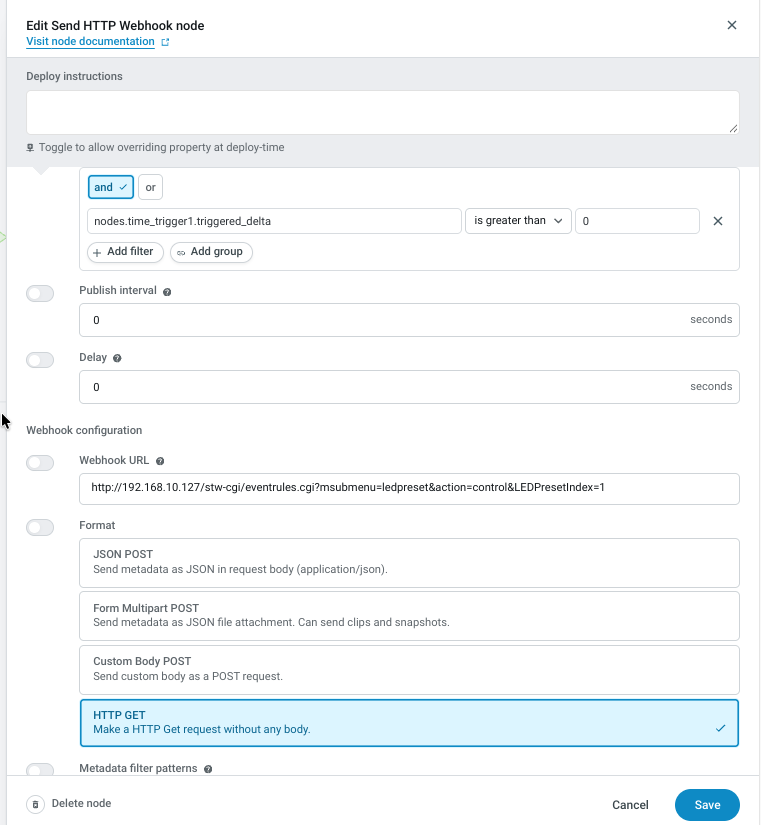
Lumeo Webhook node configuration. Set Webhook URL.
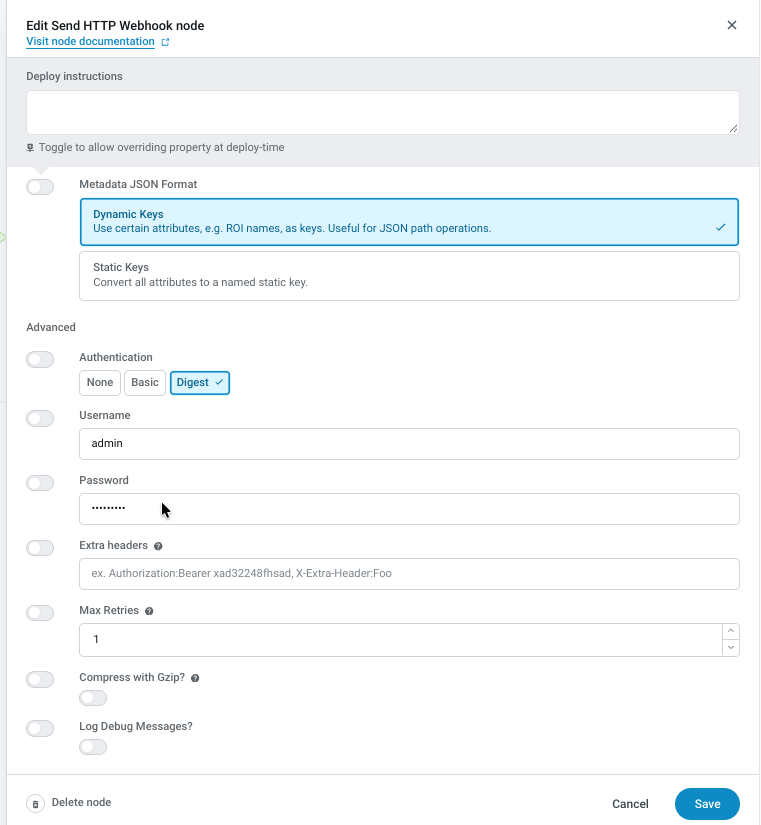
Lumeo Webhook node configuration. Set Authentication to Digest and add username and password.
Audio Talkdown
Use the Text to Speech node to trigger audio talkdowns using SIP P2P.
- Ensure your TTS node is set correctly with the prompt, trigger and TTS provider.
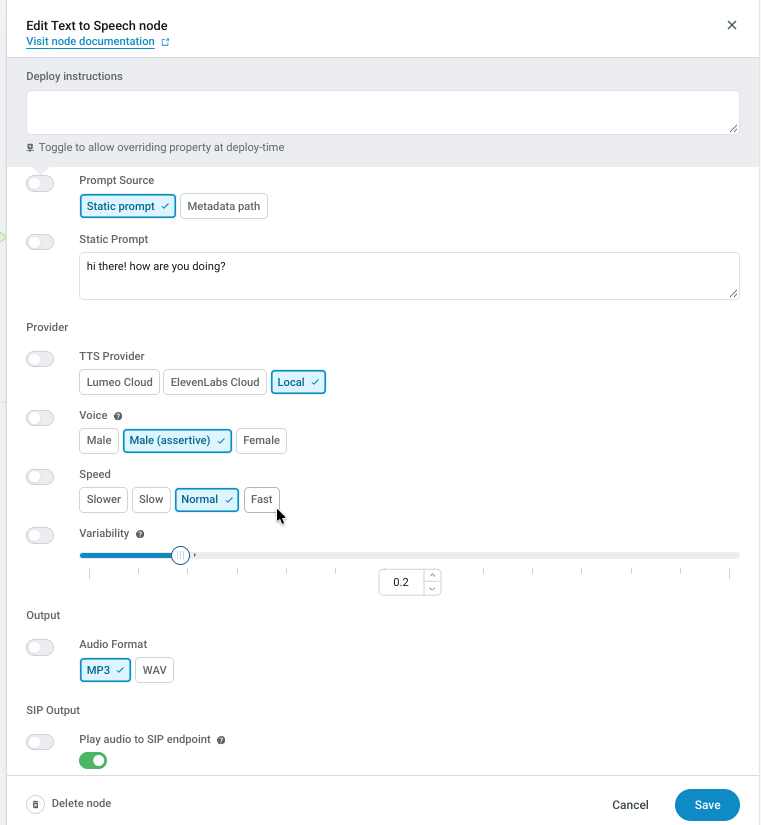
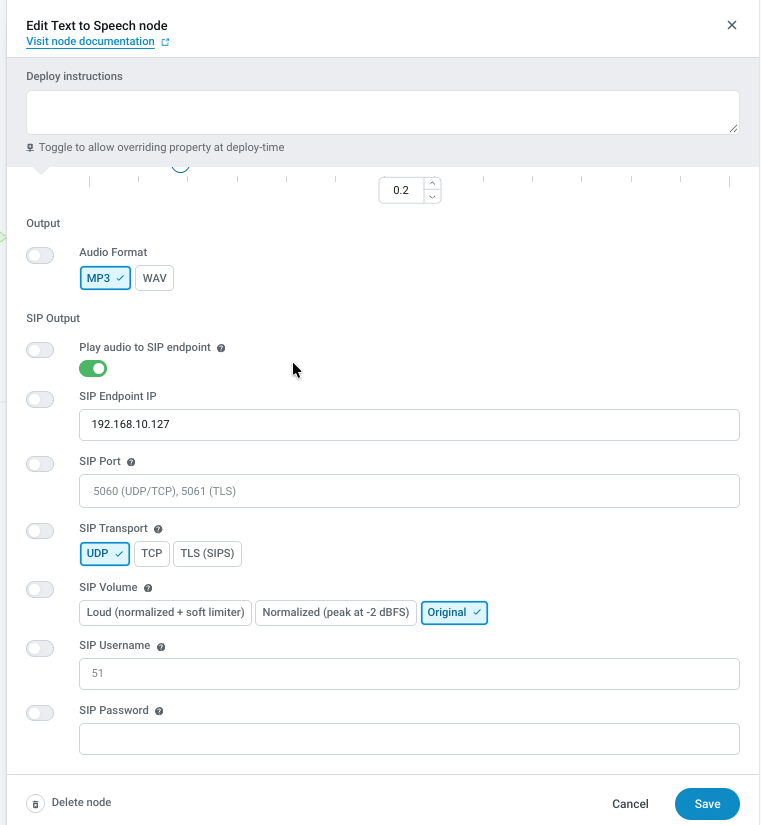
- Enable SIP output as follows:
- SIP Endpoint IP : Beacon IP address
- SIP Transport :
UDP(default) unless you configured a SIP account in Beacon to use TCP/TLS. - SIP Username/Password: Leave empty unless you created a separate SIP user/password.
Updated about 3 hours ago